1
Power ON and wait about 2 minutes
Turn the product ON. Give it time to boot and create its setup WiFi network.
Do not skip the wait. The setup WiFi usually appears after about 2 minutes.
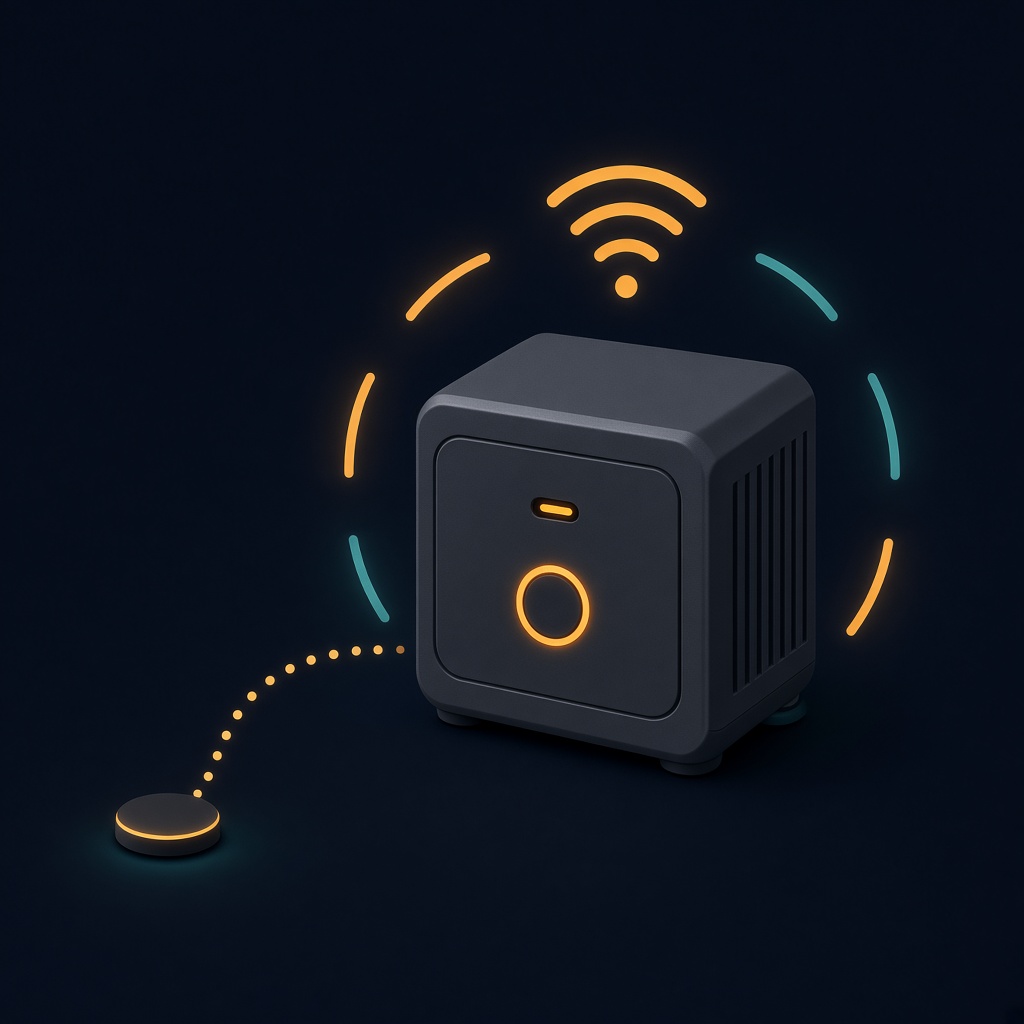
Follow these simple steps on your phone. In a few minutes your KSN WiFi Motor, Relay, or Security product will join your home WiFi.
Before you begin
You will connect your phone to the product’s own setup WiFi first. The name depends on which product you bought.
Setup guide
Large numbers, short sentences. Do them in order.
1
Turn the product ON. Give it time to boot and create its setup WiFi network.
Do not skip the wait. The setup WiFi usually appears after about 2 minutes.
2
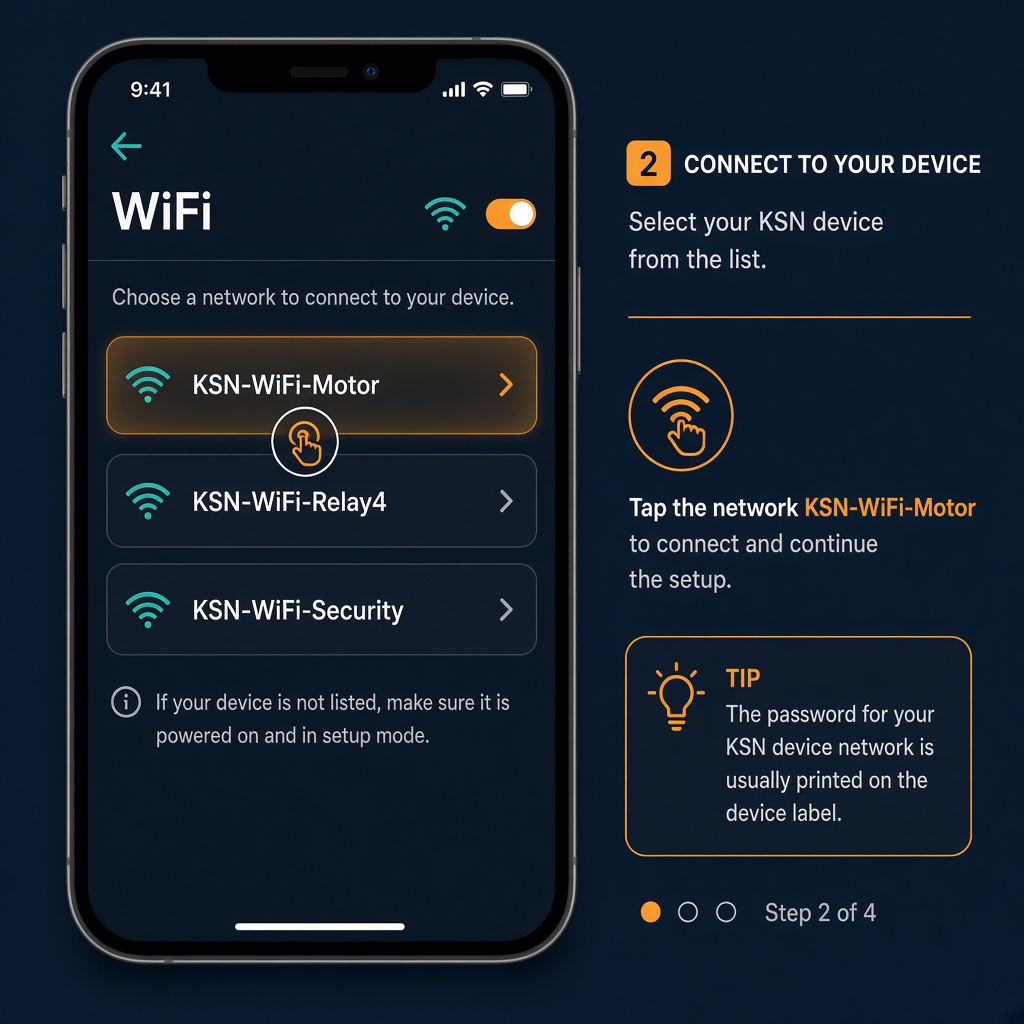
On your mobile phone, open Wi‑Fi settings. Look for a KSN network — for example:
The exact name matches the product you purchased.
3
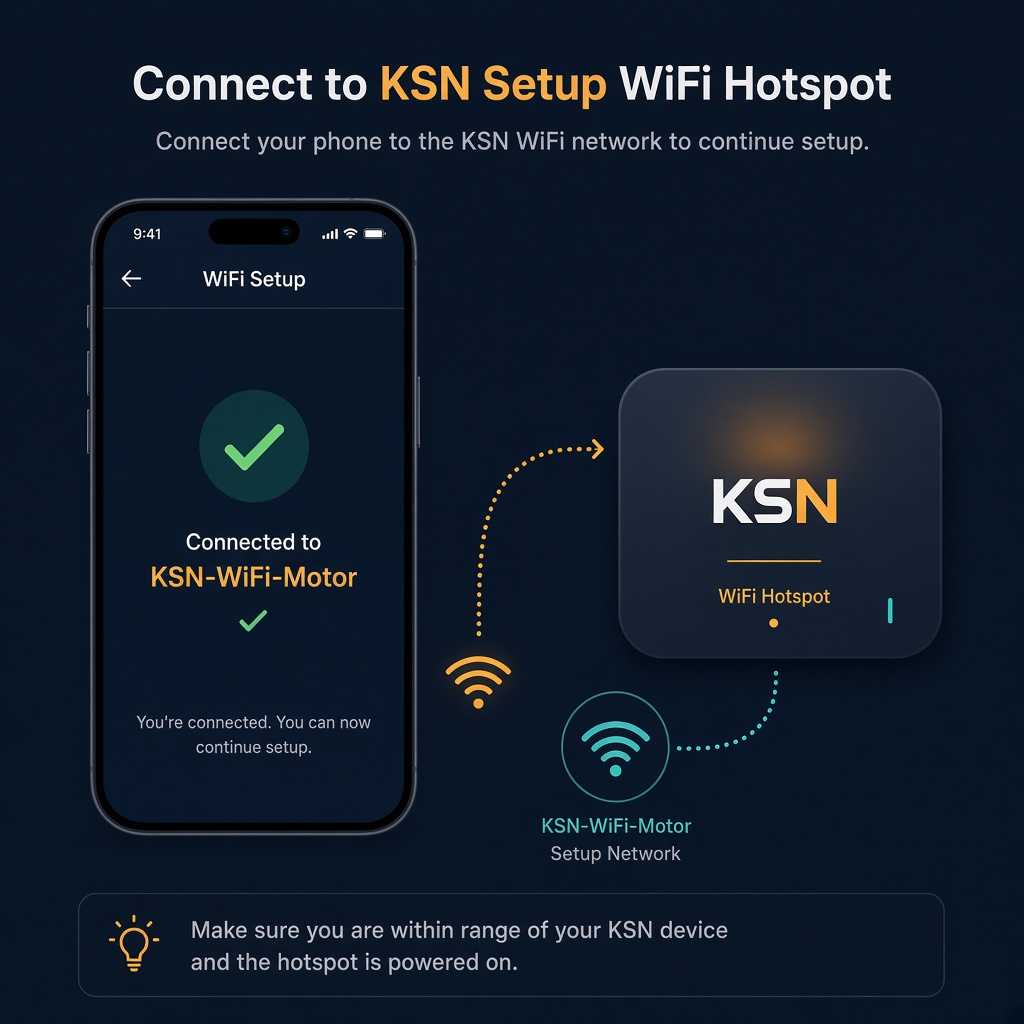
Select that product WiFi. It is an open setup network made only for first-time connection.
Stay connected to this KSN network until setup finishes.
4
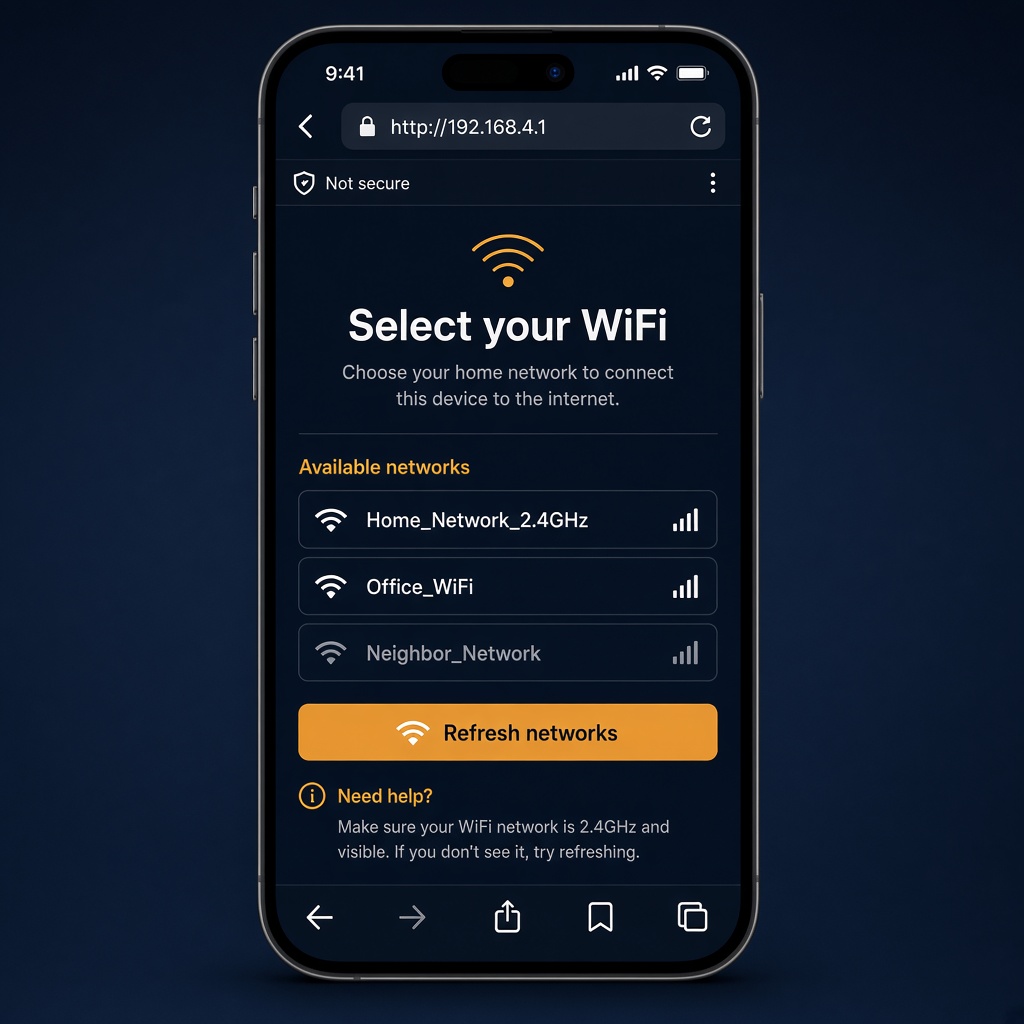
A setup page should open by itself. If it does not, use one of these:
Open any browser and go to
http://192.168.4.1
Scan this code. It opens the same address.
 http://192.168.4.1
5
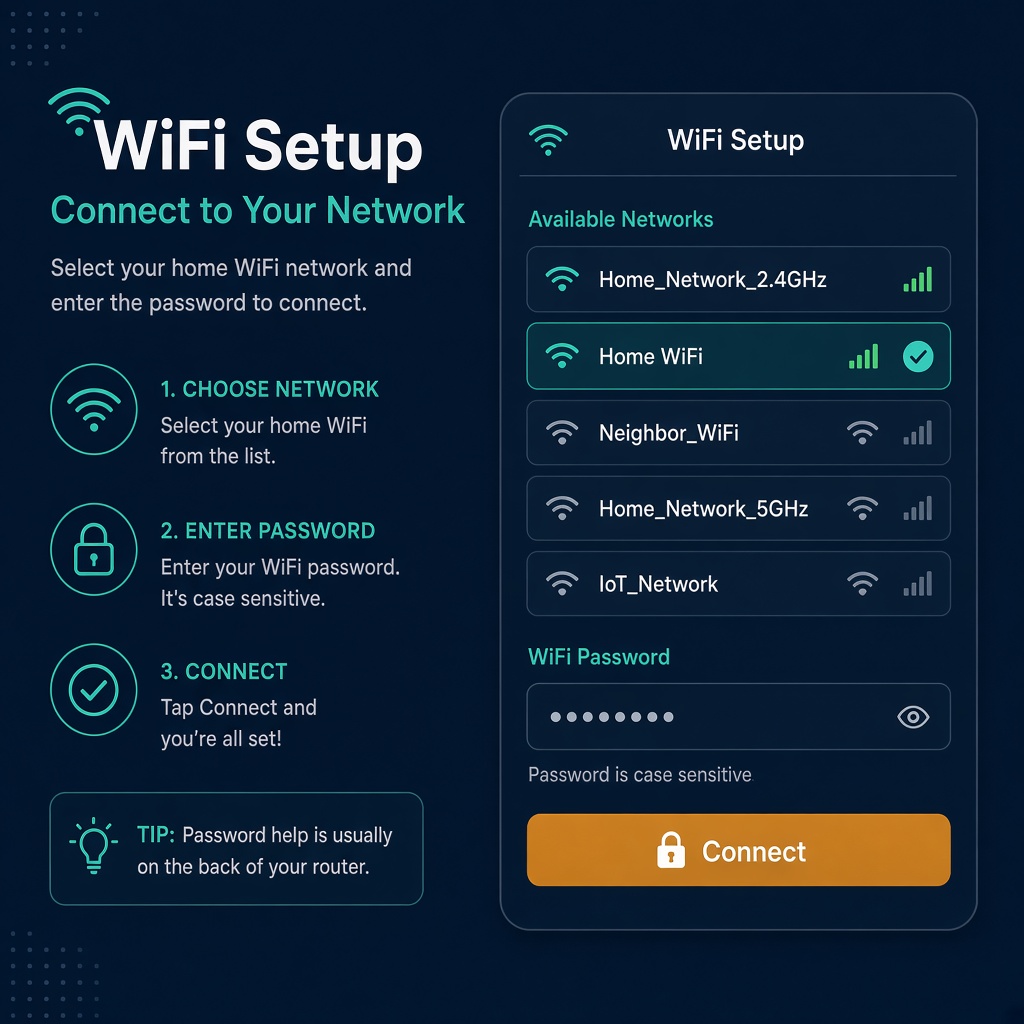
Use the same password you use for phones and laptops on that home WiFi.
6
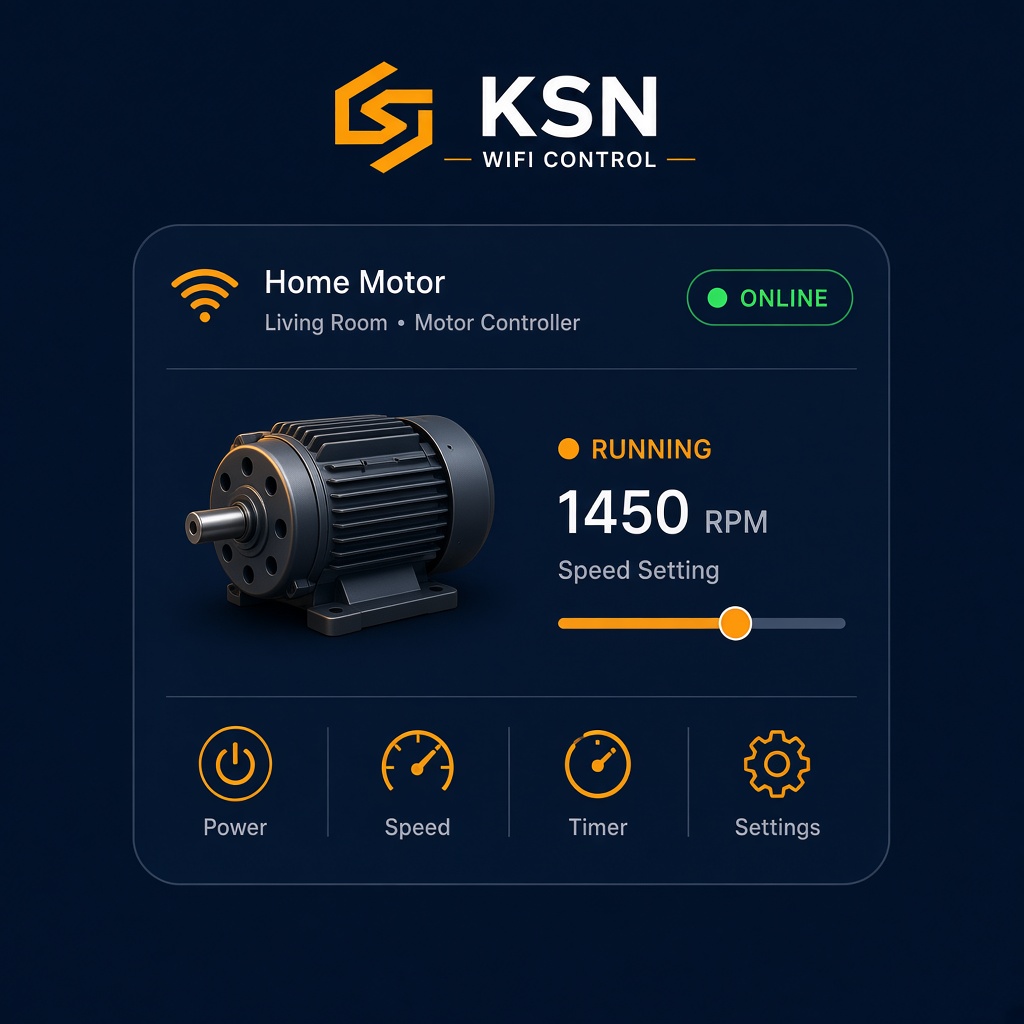
When home WiFi is connected, open the KSN WiFi app on your phone. Your device should show Online.
If it still says Offline, wait a short while, then pull to refresh. Check that the product still has power.
Browse Wi‑Fi Security on NSK Electronics, or jump back to Step 1 if you are setting up now.